



1. Go to http://www.Google.com/places

2. Click on Create an Account or Log-in using your Google username and password.

3. Enter all of the necessary contact information.

4. Click on “List your business”.

5. Enter your phone number so that Google can determine whether or not you already exist in their database.

6. If your company comes up, click “Edit”. If it does not come up, click “Add New Listing”.

7. Fill in all of the necessary information.
- Update your company name to read, “Company Name – Core City + Main Service) – Ex. Advance Plumbing - Dallas Plumbing Contractor - Drain Cleaning.
- Add your website address – This will create an important inbound link.
- Upload photos– as many as possible – use personal photos: pictures of yourself (the owner), your staff, the office, the trucks, the equipment, the company logo, coupons, and your work. People connect and resonate with other people. Leverage that in your Map Listing.
- Upload a video if you have one. If you don’t have one, get one made!
- List your hours of operation and services offered.
8. Press Submit
9. You will be asked how you want to confirm your listing – via phone or postcard.

- Always choose phone. It is much faster and will ensure that you complete the process.
- The postcard option takes 2-3 weeks to complete.
10. You will receive a call from Google’s automated system immediately. The automated system will provide you with a 5-digit code.
- Make sure you or a staff member is available to answer the office line listed in your map listing.
11. Enter that code on the next screen and press “Go” in order to activate your listing.

You will see a confirmation page indicating that you have successfully activated your listing.

That’s it! You have completed the 11 steps to claiming and setting up your Google Map listing on Google Places.
Here is what your Google Places account admin area will look like once you are finished:

Here you will be able to edit your listing, add coupons, and check on your Google Places page stats.
- How many people are pulling up your Google Places page?
- What are they searching to get to you?
- How many of them are clicking to your site?
Here is what your Google Map listing will look like once you are finished:

- Look for the “Business Owner Verified” check box in the top-right corner.
- Get reviews – Getting reviews has been proven to increase placement in the map listing.
Want more details on how to optimize your Google Places listing for page one placement? Download our FREE Google Places Optimization Guide.

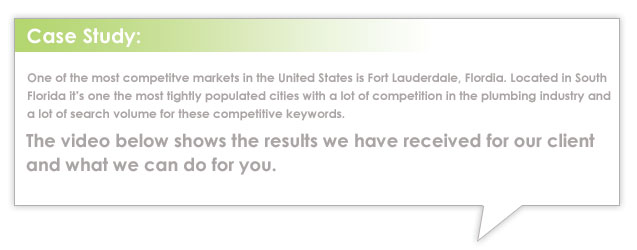
If you are looking to obtain page one placement on Google, Yahoo and Bing for the Plumbing or HVAC related keywords in your city, we can help.
Watch the videos below. It will be well worth your time.